
WordPress powers a large number of websites around the world, from personal blogs and news sites to business websites and online stores. Its flexibility is one of its biggest strengths, but that flexibility also means website owners need to take security seriously.
A WordPress website can become vulnerable when it uses outdated plugins, weak passwords, unsafe themes, unnecessary administrator accounts, or poor backup practices. In many cases, attackers do not specifically target one website. Instead, they automatically scan large numbers of websites looking for common weaknesses.
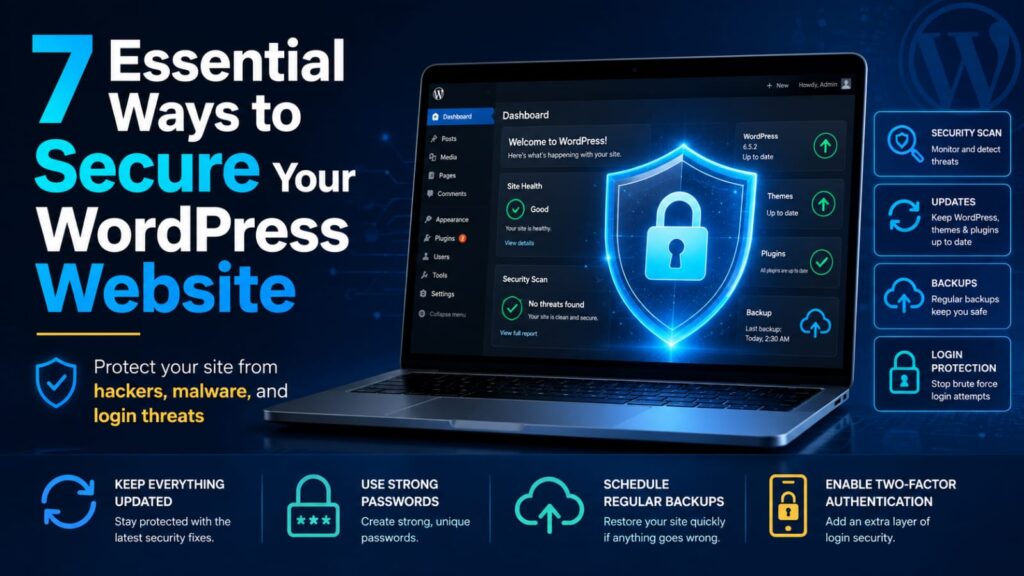
The good news is that you can reduce many of these risks by following a few practical security habits. This guide explains seven important ways to strengthen your WordPress website and protect your content, accounts, visitors, and business data.
1. Keep WordPress, Themes, and Plugins Updated
One of the most important security habits is keeping your WordPress installation up to date.
Updates may include new features, performance improvements, bug fixes, and security patches. When a known vulnerability is fixed in a newer version, continuing to use an older version may leave your website exposed.
You should regularly check for updates to:
- WordPress core
- Installed plugins
- Active themes
- Inactive themes you still keep
- Server software where applicable
Before applying major updates to an important production website, create a reliable backup. This gives you a recovery option if an update causes a compatibility issue.
Remove Plugins and Themes You No Longer Use
Unused plugins and themes can still become a security concern if they remain installed and outdated.
If you no longer need a plugin or theme, removing it is often better than simply deactivating it.
A smaller and cleaner WordPress installation is generally easier to maintain and monitor.
2. Use Strong and Unique Login Credentials
Your WordPress administrator account has powerful access to your website. Protecting it with a strong password is essential.
Avoid passwords based on:
- Your website name
- Your business name
- Your phone number
- Your birthday
- Simple number sequences
- Common words
- Passwords you already use elsewhere
Use a long and unique password that you do not reuse on email, hosting, social media, or other services.
A reputable password manager can make it easier to create and store unique passwords.
Avoid Obvious Administrator Usernames
Using a predictable username does not automatically make a website insecure, but avoiding unnecessary predictability can reduce the amount of information available to attackers.
If your administrator username is public or easy to guess, your password becomes even more important.
Never depend on hiding the username as your main security measure. Strong passwords and additional authentication remain more important.
3. Enable Two-Factor Authentication
Two-factor authentication adds another verification step after the password.
This can make unauthorized access more difficult because knowing the password alone may not be enough to complete the login process.
Depending on the authentication solution you use, the second factor may involve:
- An authenticator application
- A security key
- A trusted device
- A one-time verification method
Two-factor authentication is especially valuable for administrator accounts, editors, hosting accounts, and other users with powerful permissions.
Protect Your Hosting Account Too
Securing WordPress while ignoring your hosting account creates a major weakness.
Your hosting dashboard may allow access to website files, databases, backups, email accounts, and domain settings.
Use a unique password and multi-factor authentication for your hosting provider whenever available.
4. Create Regular Website Backups
Backups are a critical part of website security because no security system can guarantee that a website will never experience a problem.
A backup can help you recover from situations such as:
- Website hacking
- Accidental file deletion
- Failed updates
- Plugin conflicts
- Database corruption
- Server problems
Your backup should include both your WordPress files and database.
Store Backups Separately
Keeping every backup on the same server as your live website can create unnecessary risk.
If the server experiences a serious failure or an attacker gains broad access, both the live site and the backups may be affected.
Consider keeping an additional backup copy in a separate secure location.
Test Your Backups
A backup is useful only if it can be restored.
Website owners sometimes discover during an emergency that their backup is incomplete, corrupted, or missing important database information.
Periodically confirm that your backup process is working correctly and that you understand how restoration works.
5. Limit Administrator Access
Not everyone who works on a WordPress website needs full administrator permissions.
WordPress includes different user roles, allowing you to provide appropriate access based on each person’s responsibilities.
For example, someone who only writes articles may not need permission to install plugins, modify themes, or change website settings.
Limiting access reduces the potential damage caused by compromised accounts or accidental mistakes.
Remove Old User Accounts
Regularly review your WordPress users.
If an employee, freelancer, developer, or contributor no longer works on the website, remove or downgrade their access when it is no longer required.
Old accounts can be forgotten, and forgotten accounts may remain vulnerable if their passwords are weak or reused.
Use Separate Accounts for Different Users
Avoid sharing one administrator username and password among several people.
Individual accounts make it easier to control permissions and understand who performed specific actions.
If one person’s access needs to be removed, you can disable only that account without affecting everyone else.
6. Use Trusted Plugins and Themes
Plugins and themes can add valuable features to WordPress, but they also become part of your website’s security environment.
Before installing a plugin or theme, consider factors such as:
- Whether it comes from a trusted source
- Whether it is actively maintained
- Whether it receives updates
- Whether it is compatible with your WordPress version
- Whether you actually need the feature
Avoid downloading premium themes or plugins from unofficial websites simply because they are being offered for free.
Modified or unauthorized copies may contain unsafe code, hidden links, malware, or other unwanted changes.
Install Only What You Need
Every additional plugin increases the amount of software you need to maintain.
Installing several plugins that perform similar functions can also create compatibility problems and make troubleshooting more difficult.
Use the smallest number of reliable plugins necessary to achieve your website’s goals.
7. Monitor Your Website for Unusual Activity
Security is easier to manage when you notice suspicious behavior early.
Watch for signs such as:
- Unexpected administrator accounts
- Unknown plugins
- Unexplained changes to website pages
- Visitors being redirected to strange websites
- Unusual login activity
- Sudden performance problems
- Unexpected files appearing on the server
If something appears unusual, investigate rather than ignoring it.
Review Login Activity
If your security tools provide login history or alerts, review them periodically.
Repeated failed login attempts do not automatically mean your website has been compromised, but they can show that automated systems are attempting to access the login page.
Strong credentials and two-factor authentication provide important protection against this type of activity.
Secure Your WordPress Database and Hosting Environment
WordPress security goes beyond the WordPress dashboard.
Your website depends on a broader environment that can include:
- Your web server
- Your database
- Your hosting control panel
- Your domain account
- Your DNS configuration
- Your email account
Each of these accounts should use strong and unique credentials.
If your hosting provider offers automatic backups, security monitoring, malware scanning, or multi-factor authentication, review those options and decide which are appropriate for your website.
Use HTTPS on Your Website
HTTPS encrypts communication between a visitor’s browser and your website server.
Modern websites should generally use a valid SSL or TLS certificate so that pages load through HTTPS.
After enabling HTTPS, make sure your website consistently redirects visitors to the secure version and that important resources are not still loading through insecure HTTP connections.
Protect Your WordPress Login Page
The login page is a common target for automated login attempts.
You can improve login security by using strong credentials, two-factor authentication, and appropriate protection against excessive failed login attempts.
However, avoid making your login process unnecessarily complicated for legitimate administrators.
The goal should be stronger authentication rather than relying on obscure tricks that provide little real protection.
Be Careful When Editing WordPress Files
Directly editing theme or plugin files on a live website can create security and reliability problems if changes are made incorrectly.
Before making significant changes:
- Create a backup
- Document the original configuration
- Use a staging environment when possible
- Test changes before applying them to the live site
This is especially important when modifying PHP files, server settings, or database configuration.
What Should You Do If Your WordPress Website Is Hacked?
If you believe your website has been compromised, avoid making random changes without understanding what happened.
Start by securing the accounts that control the website.
Depending on the incident, appropriate actions may include:
- Changing WordPress administrator passwords
- Changing hosting passwords
- Reviewing administrator accounts
- Removing suspicious plugins or files
- Checking the database for unauthorized changes
- Reviewing server and security logs
- Restoring a known clean backup when appropriate
If customer information, payment systems, or sensitive business data may have been affected, consider getting professional security assistance.
Do Not Immediately Delete All Evidence
It may be tempting to delete suspicious files as soon as you find them, but this can sometimes make it harder to understand how the compromise happened.
For serious incidents, keeping appropriate logs and records can help with investigation and prevent the same problem from returning.
Common WordPress Security Mistakes
Many website security problems are connected to basic maintenance issues.
Common mistakes include:
- Leaving WordPress outdated
- Using weak administrator passwords
- Reusing passwords
- Installing plugins from unknown websites
- Keeping abandoned plugins installed
- Giving too many users administrator access
- Not maintaining backups
- Ignoring hosting account security
- Using outdated PHP or server software
A Simple WordPress Security Checklist
You can use this checklist when reviewing your website:
- Update WordPress core
- Update trusted plugins and themes
- Delete unused plugins and themes
- Review administrator accounts
- Use unique passwords
- Enable two-factor authentication where possible
- Confirm automatic backups are working
- Check that HTTPS is active
- Review unusual login activity
- Protect your hosting and domain accounts
How Often Should You Review WordPress Security?
Security should be part of routine website maintenance rather than something you think about only after a problem occurs.
Websites that change frequently may require more frequent monitoring than small static sites.
A practical routine might include checking updates regularly, monitoring important alerts as they arrive, reviewing user accounts periodically, and confirming that backups are being created successfully.
Frequently Asked Questions
Is WordPress safe to use?
WordPress can be used securely when it is properly maintained. Security depends on several factors, including updates, passwords, plugins, hosting configuration, user permissions, and ongoing maintenance.
Do I need a security plugin?
A reputable security plugin can provide useful features such as monitoring, login protection, scanning, or alerts. However, no plugin replaces strong passwords, updates, backups, secure hosting, and responsible administration.
How often should WordPress plugins be updated?
Website owners should monitor available updates regularly. Before applying major changes to an important website, it is wise to have a current backup and confirm that the update is compatible with your setup.
Can an inactive plugin create a security risk?
Inactive software remains installed on the server. If you no longer need a plugin, removing it can reduce unnecessary software and simplify website maintenance.
Is changing the WordPress login URL enough to stop hackers?
No. Changing a login URL may reduce some automated traffic, but it should not be considered a replacement for strong authentication, unique passwords, updates, and other important security measures.
What is the most important WordPress security step?
There is no single setting that protects everything. A strong security approach combines regular updates, unique passwords, two-factor authentication, reliable backups, trusted software, and limited administrator access.
Final Thoughts
WordPress security does not have to be overly complicated. Most website owners can significantly reduce common risks by maintaining the software, controlling user access, using strong authentication, installing trusted plugins, and keeping reliable backups.
The key is consistency. A website that is regularly maintained is generally easier to protect than one that is ignored for months and updated only after something goes wrong.
Take a few minutes to review your WordPress website today. Remove unnecessary software, check your administrator accounts, confirm your backups, and make sure important components are up to date. These simple habits can make a meaningful difference to the long-term security and reliability of your website.