
Every time you use the internet, you leave behind pieces of personal information. This may include your email address, browsing activity, location, device details, search history, account information, shopping behavior, and social media activity.
Some of this data is necessary for websites and apps to function properly, but sharing too much information can increase privacy and security risks. Personal data may be used for advertising, profiling, account recovery, fraud attempts, or identity-related scams if it falls into the wrong hands.
Protecting your privacy does not mean avoiding the internet. It means understanding what information you share, where you share it, and how to reduce unnecessary exposure. This guide explains practical steps anyone can use to improve personal privacy online.
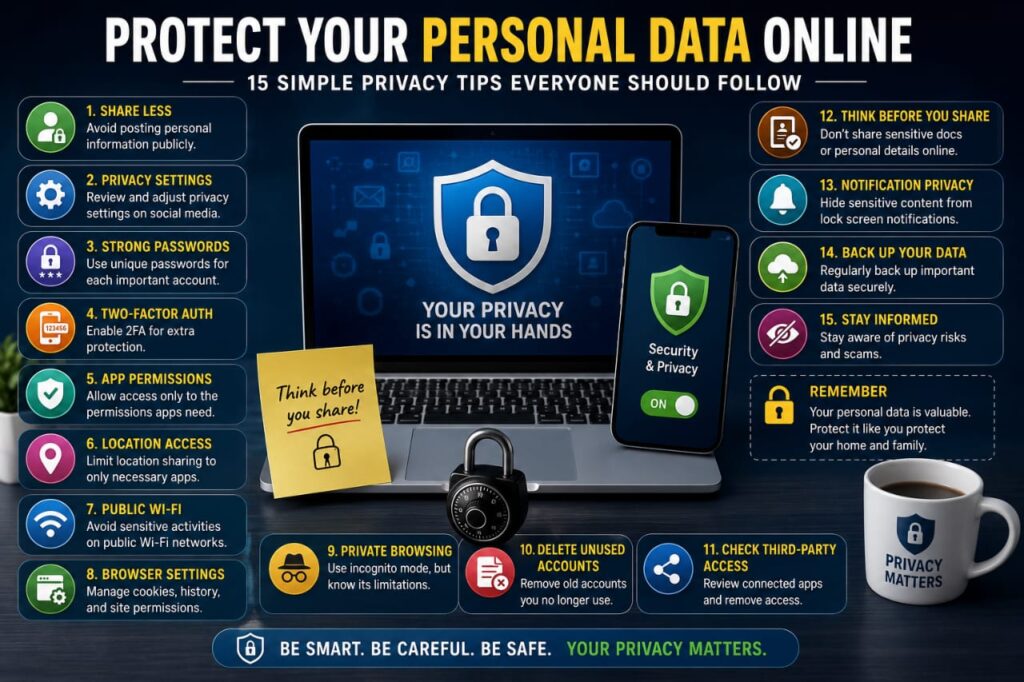
1. Share Less Personal Information Publicly
One of the easiest ways to improve online privacy is to reduce the amount of personal information you publish publicly.
Before posting something, consider whether strangers really need to know details such as:
- Your full home address
- Your personal phone number
- Your exact daily routine
- Your workplace schedule
- Your travel plans
- Your family members’ private information
- Your financial details
Information that seems harmless by itself can sometimes become more sensitive when combined with other public details.
2. Review Social Media Privacy Settings
Social media platforms often provide controls that allow you to decide who can see your posts, profile details, photos, friend lists, and activity.
Review these settings periodically, especially after major platform updates.
You may want to check:
- Who can see your posts
- Who can find you using your phone number
- Who can send friend or follow requests
- Whether your profile appears in search engines
- Who can see your contact information
- Who can tag or mention you
3. Use Different Passwords for Important Accounts
Reusing passwords makes privacy problems worse because one leaked password may affect several accounts.
Use a unique password for your primary email, social media, banking, cloud storage, and other important services.
A reputable password manager can make it easier to create and store unique passwords without having to remember every one manually.
4. Enable Two-Factor Authentication
Two-factor authentication adds an extra verification step beyond your password.
If someone obtains your password, additional authentication may still prevent unauthorized access.
Enable two-factor authentication on important accounts whenever available, particularly:
- Banking
- Social media
- Cloud storage
- Business platforms
- Website administration
5. Review App Permissions
Mobile applications may request access to your camera, microphone, contacts, files, location, notifications, and other features.
Some permissions are necessary, but others may not be essential for the app’s main purpose.
Review permissions from time to time and remove access that no longer makes sense.
For example, an application that does not need your location to function may not need continuous location access.
6. Be Careful with Location Sharing
Location services are useful for navigation, delivery, weather, transportation, and local recommendations.
However, not every application needs constant access to your exact location.
Where possible, consider whether an application should have location access:
- All the time
- Only while using the app
- Only once
- Never
You should also think carefully before posting your live location publicly on social media.
7. Avoid Posting Travel Plans in Real Time
Sharing vacation photos can be enjoyable, but publicly announcing that your home will be empty for several days may create unnecessary privacy risks.
If privacy is important to you, consider sharing travel updates after returning home or limiting them to trusted contacts.
You can still share your experiences without revealing your exact location in real time.
8. Check What Information Your Browser Stores
Web browsers may store:
- Browsing history
- Cookies
- Saved passwords
- Autofill information
- Site permissions
- Downloaded files
Review these settings and decide what you are comfortable storing.
On a personal device, saved information may be convenient. On a shared computer, however, it may expose sensitive details to other users.
9. Use Private Browsing Correctly
Private or incognito browsing can help prevent the browser from saving some local browsing history after you close the session.
However, private browsing does not make you anonymous on the internet.
Your internet provider, employer, school network, websites, and online services may still be able to observe certain activity depending on the situation.
Use private browsing for local privacy, but do not mistake it for complete anonymity.
10. Be Careful with Public Wi-Fi
Public Wi-Fi can be useful in airports, hotels, restaurants, and shopping centers, but unknown networks should be treated cautiously.
Avoid entering highly sensitive information when you are unsure about the network.
Be especially careful with:
- Online banking
- Payment services
- Business administration
- Confidential email
- Password changes
Using your own mobile data connection can be a safer choice for sensitive activity.
11. Read Before Granting Website Permissions
Websites may ask for access to your location, camera, microphone, notifications, or clipboard.
Do not automatically click “Allow.”
Ask whether the website genuinely needs the requested permission.
If you accidentally grant unnecessary access, most browsers allow you to change permissions later from site settings.
12. Be Selective About Browser Extensions
Browser extensions can be useful, but some may have permission to read or modify data on websites you visit.
Install extensions only from trusted sources and remove those you no longer use.
Before installing an extension, review:
- The permissions it requests
- The developer
- Whether it is still maintained
- Whether you actually need it
13. Avoid Sharing Sensitive Information Through Unknown Forms
Online forms are commonly used for registrations, payments, surveys, and customer support.
Before submitting personal data, check whether the website is legitimate and whether the requested information is appropriate.
Be cautious when an unfamiliar website asks for:
- Government identification
- Banking information
- Full payment card details
- Passwords
- Verification codes
- Recovery codes
A legitimate website should have a clear reason for requesting sensitive information.
14. Delete Accounts You No Longer Use
Old accounts can continue storing personal information for years.
If you no longer use a service, consider whether you still need the account.
Deleting unused accounts may reduce the number of companies storing your information and the number of accounts you need to protect.
Before deleting an account, save any data you want to keep.
15. Review Connected Apps and Third-Party Access
Many websites allow you to sign in using an existing Google, Apple, Microsoft, or social media account.
Over time, you may grant access to dozens of third-party applications and services.
Review connected applications periodically and remove access for services you no longer use or recognize.
This can reduce unnecessary access to your profile information and account data.
Protect Your Primary Email Address
Your primary email account often acts as the recovery center for many other services.
If someone gains access to it, they may attempt to reset passwords for other accounts.
Use a strong unique password, enable two-factor authentication, and review recovery information regularly.
For newsletters, promotions, and less important registrations, some users prefer to keep a separate email address so their primary inbox is exposed to fewer services.
Be Careful with Online Quizzes and Surveys
Online quizzes may ask questions that seem entertaining but resemble common security questions.
Examples may include:
- Your first school
- Your first pet
- Your childhood nickname
- The city where you were born
Avoid publishing sensitive answers publicly, especially if similar information is used for account recovery.
Think Before Uploading Personal Documents
Identification documents, bank statements, utility bills, and official records may contain information that should not be shared casually.
Before uploading a document, verify:
- The website is legitimate
- The document is genuinely required
- The connection is secure
- The organization explains how the data will be used
Whenever possible, avoid uploading more information than necessary.
Understand Cookies and Tracking
Cookies are small pieces of data that websites store in your browser. They can be used for important functions such as keeping you signed in, remembering preferences, or maintaining a shopping cart.
Some cookies and similar technologies are also used for analytics and advertising.
Many websites provide consent or privacy controls that allow you to manage optional tracking.
Review these choices based on your personal preferences rather than automatically accepting every option.
Be Careful with Personalized Scam Messages
Scammers may use publicly available personal information to make fake messages appear more convincing.
A message may include your name, employer, city, or other information and still be fraudulent.
Do not trust a message simply because it knows something about you.
Always verify unexpected requests involving money, passwords, account access, or sensitive personal information.
What Should You Do After a Data Breach?
If a company you use announces a data breach, first determine what type of information may have been affected.
If passwords were exposed, change the password for that service.
If you reused the same password elsewhere, change those passwords as well.
You may also want to:
- Enable two-factor authentication
- Watch for phishing messages
- Review account activity
- Check recovery information
- Monitor financial accounts when relevant
What Is Personally Identifiable Information?
Personally identifiable information can include data that identifies or can be linked to an individual.
Depending on context, this may include:
- Full name
- Email address
- Phone number
- Home address
- Identification numbers
- Financial information
- Account credentials
Not every piece of personal data carries the same level of risk, but sensitive information should be shared only when necessary.
Common Online Privacy Mistakes
Many privacy problems result from convenience and habit rather than deliberate decisions.
Common mistakes include:
- Making every social media post public
- Sharing personal information unnecessarily
- Granting every app permission
- Keeping unused accounts forever
- Installing unnecessary browser extensions
- Posting live location information
- Using the same password everywhere
- Ignoring third-party account access
A Simple Online Privacy Checklist
Use this checklist to review your digital privacy:
- Review social media privacy settings
- Remove unnecessary personal information
- Use unique passwords
- Enable two-factor authentication
- Review app permissions
- Limit unnecessary location access
- Remove unused browser extensions
- Delete accounts you no longer need
- Review connected apps
- Be cautious when submitting sensitive documents
Frequently Asked Questions
Can I completely remove my personal information from the internet?
Completely removing all personal information can be difficult because information may exist across many services, public records, archives, and third-party databases. However, reducing unnecessary exposure and deleting unused accounts can improve privacy.
Does private browsing hide everything I do online?
No. Private browsing mainly limits what is saved locally in the browser. It does not automatically hide activity from websites, network administrators, internet providers, or online services.
Should I deny every app permission?
No. Some applications genuinely need permissions to provide their features. The goal is to allow only access that is necessary and reasonable.
Is it safe to share my phone number online?
It depends on the situation. Sharing your phone number publicly can increase spam and unwanted contact. Provide it only when there is a legitimate reason and you trust the service receiving it.
Should I delete old social media accounts?
If you no longer use an account and do not need its content, deleting it can reduce the amount of personal information stored online. Review and download anything important before deletion.
What is the easiest way to improve online privacy?
Start by sharing less information publicly, reviewing app permissions, securing important accounts, and removing services you no longer use. These simple steps can significantly reduce unnecessary exposure.
Final Thoughts
Online privacy is not about hiding everything. It is about maintaining reasonable control over your personal information and reducing unnecessary exposure.
Simple habits such as limiting public information, reviewing privacy settings, using unique passwords, controlling app permissions, and removing unused accounts can make a meaningful difference.
You do not need to change everything in one day. Start with your most important accounts and devices, then review the rest over time. A few thoughtful privacy decisions can help protect your identity, personal information, and digital life for the long term.