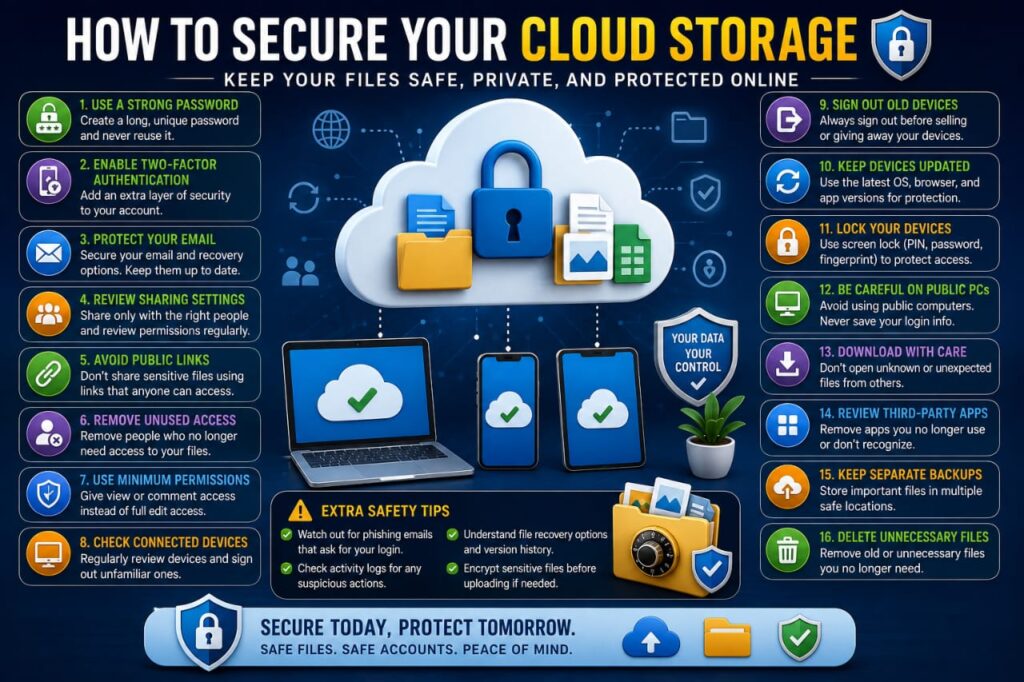

Cloud storage has become one of the easiest ways to save photos, documents, business files, backups, and other important information. Services such as Google Drive, OneDrive, Dropbox, iCloud, and similar platforms allow users to access their files from multiple devices without carrying physical storage everywhere.
While cloud storage is convenient, the security of your files still depends heavily on how you protect your account, devices, sharing settings, and recovery options.
A weak password, an accidentally public folder, a compromised email account, or an unknown connected device could expose information that you intended to keep private.
This guide explains practical ways to secure your cloud storage and reduce the risk of unauthorized access, accidental sharing, and data loss.
1. Use a Strong and Unique Password
Your cloud storage password should never be reused on other websites.
If you use the same password for several services and one of those services experiences a security incident, attackers may attempt to use the exposed password on your cloud account.
A strong password should be:
- Long
- Unique
- Difficult to predict
- Unrelated to your personal information
- Different from your email password
A reputable password manager can help you generate and store unique passwords for different accounts.
2. Enable Two-Factor Authentication
Two-factor authentication adds another verification step when someone attempts to access your account.
Even if your password becomes known, the second authentication factor can make unauthorized access more difficult.
Depending on your provider, authentication options may include:
- Authenticator apps
- Security keys
- Trusted-device approval
- Biometric verification
- One-time codes
For accounts containing important business documents, private photos, financial records, or backups, additional authentication is especially valuable.
3. Protect the Email Account Connected to Your Cloud Storage
Your email account is often used to reset your cloud storage password.
If someone gains control of your email account, they may attempt to recover access to your cloud files as well.
Protect your primary email with:
- A separate strong password
- Two-factor authentication
- Updated recovery information
- Regular login activity reviews
Cloud security and email security are closely connected, so both accounts deserve strong protection.
4. Review File and Folder Sharing Settings
One of the most common cloud privacy mistakes is accidentally sharing files with more people than intended.
A document may be configured as:
- Private
- Shared with specific people
- Available to anyone with the link
- Publicly accessible
Before uploading sensitive information, understand how your provider handles these options.
Periodically review important folders and confirm that only the intended people still have access.
5. Avoid Public Links for Sensitive Documents
“Anyone with the link” sharing is convenient because recipients do not always need individual access.
However, a link can potentially be forwarded to other people without your knowledge.
For sensitive documents, consider sharing directly with specific accounts instead of creating a broadly accessible link.
This is especially important for files containing:
- Personal identification
- Financial information
- Private business documents
- Employee information
- Customer records
- Confidential contracts
6. Remove Access When It Is No Longer Needed
Cloud documents are often shared temporarily with coworkers, freelancers, clients, friends, or family members.
Once the collaboration is complete, old permissions may remain active indefinitely.
Review access periodically and remove people who no longer need the files.
This is particularly important when an employee leaves a company or when a contractor finishes a project.
7. Use the Minimum Permission Necessary
Many cloud platforms allow different permission levels.
Common options may include:
- Viewer
- Commenter
- Editor
- Owner or administrator
If someone only needs to read a document, there may be no reason to give them editing permission.
Giving users only the access they actually require reduces the chance of accidental deletion or unauthorized changes.
8. Review Devices Connected to Your Account
Your cloud account may remain signed in on computers, smartphones, tablets, or browsers that you no longer use.
Review connected devices from your account security settings.
If you see a device you no longer own or recognize, sign it out.
If the activity appears suspicious, you should also consider changing your password and reviewing other security settings.
9. Sign Out Before Selling or Giving Away a Device
A device that contains an active cloud login could expose files to its next owner if it is not properly prepared.
Before selling, recycling, or giving away a phone or computer:
- Sign out of cloud accounts
- Remove saved credentials
- Back up anything you want to keep
- Use the device manufacturer’s recommended reset process
Afterward, check your online account to confirm that the old device is no longer trusted or actively signed in.
10. Keep Your Devices Updated
Your cloud provider may have strong security, but your files can still be exposed through an insecure device.
Keep your:
- Operating system updated
- Browser updated
- Cloud storage application updated
- Security software updated when applicable
Software updates may contain fixes for vulnerabilities that could otherwise affect account or device security.
11. Lock Your Phone and Computer
If someone gains physical access to an unlocked device, they may be able to open cloud files without knowing your cloud password.
Protect your devices using:
- A strong PIN
- A password
- Fingerprint authentication
- Facial authentication where appropriate
Configure your screen to lock automatically after a reasonable period of inactivity.
12. Be Careful with Public or Shared Computers
Accessing private cloud files on a public computer can create additional risks.
The device may store browser sessions, downloaded files, or other information after you leave.
If you must use a shared computer:
- Do not save your password
- Do not mark the device as trusted
- Sign out completely
- Delete sensitive downloads
- Avoid leaving files in temporary folders
For highly sensitive documents, using your own trusted device is preferable.
13. Be Careful When Downloading Shared Files
A file shared through a cloud platform is not automatically safe simply because it is hosted by a well-known provider.
Attackers may distribute malicious files through legitimate cloud services.
Be cautious with unexpected:
- Executable files
- Compressed archives
- Office documents
- Scripts
- Unknown installers
If someone unexpectedly shares a file with you, verify the sender before opening it.
14. Watch for Fake Cloud Storage Login Pages
Phishing messages frequently imitate cloud storage services.
A fake message may say that:
- A document was shared with you
- Your storage is full
- Your subscription failed
- Your account will be suspended
- You must verify your identity
The link may lead to a fake login page designed to collect your password.
For important account actions, opening the official app or typing the official website address yourself is safer than following an unexpected message link.
15. Review Third-Party App Access
Some applications request permission to access files stored in your cloud account.
Over time, you may forget which applications you previously authorized.
Review connected apps periodically and remove access for software that you:
- No longer use
- Do not recognize
- No longer trust
- Installed only temporarily
This reduces the number of external services that can potentially access your information.
16. Keep Separate Backups of Important Files
Cloud storage is useful for backup, but storing your only copy of an important file in one location can still create risk.
Files may be accidentally deleted, overwritten, corrupted, or affected by account problems.
For irreplaceable information, consider keeping an additional copy in another secure location.
This may include:
- An external storage device
- A separate trusted cloud service
- A secure computer backup
17. Understand Sync Before Deleting Files
Cloud synchronization can automatically keep the same files across several devices.
This is convenient, but it can also cause confusion.
Deleting a synchronized file from one device may remove it from the cloud and other connected devices as well.
Before deleting important information, understand whether the folder is synchronized or simply stored locally.
18. Learn How File Recovery Works
Many cloud storage platforms temporarily keep deleted files in a trash or recycle area.
They may also provide previous versions of edited documents.
Before you need these features, learn:
- How long deleted files are retained
- Whether previous versions can be restored
- How recovery works
- Whether your plan has additional recovery features
Understanding recovery options can save valuable time after an accidental deletion.
19. Encrypt Highly Sensitive Files When Appropriate
Some users and businesses may want an additional layer of protection for especially sensitive documents.
Depending on your needs, files may be encrypted before being uploaded to cloud storage.
However, encryption also creates responsibility. If you lose the encryption password or recovery information, the cloud provider may not be able to recover the protected data for you.
Use additional encryption only when you understand how the chosen method works and how recovery will be handled.
20. Avoid Storing Information You Do Not Need
The simplest way to reduce the exposure of highly sensitive information is sometimes not to store it unnecessarily.
Periodically review your cloud storage and delete information that no longer serves a legitimate purpose.
This might include:
- Old identification copies
- Expired contracts
- Unused account exports
- Old payment documents
- Duplicate backups
- Temporary shared files
Before deleting business records, make sure you understand any legal or operational retention requirements that may apply to you.
How to Share Cloud Files More Safely
Before sharing an important document, take a moment to review the settings.
Ask yourself:
- Who needs this file?
- Do they need viewing or editing permission?
- Should the link work for anyone?
- Does the file contain unnecessary personal information?
- When should access be removed?
These questions can prevent accidental exposure while still allowing convenient collaboration.
What Should You Do If You Accidentally Share a Private File?
If you discover that a private document was shared more widely than intended, update the sharing settings immediately.
Remove unauthorized users and disable any public link that is no longer needed.
If the document contained passwords, financial information, or other credentials, changing the affected credentials may also be necessary.
For sensitive business information, document what happened and determine whether additional action is appropriate.
What Should You Do If Your Cloud Account Is Hacked?
If you suspect unauthorized access, secure the account as quickly as possible.
Consider taking these steps:
- Change the account password
- Sign out unfamiliar sessions
- Enable or review two-factor authentication
- Check account recovery information
- Review recently shared files
- Remove unknown third-party applications
- Check deleted files
- Review recent account activity
You should also secure the email account connected to your cloud service.
Check for Unexpected File Changes
After suspicious account activity, review important folders for:
- Deleted documents
- Renamed files
- New unfamiliar files
- Changed permissions
- Unexpected shared links
Use version history or recovery features where available if legitimate documents were modified or removed.
Common Cloud Storage Security Mistakes
Many cloud security problems happen because of simple configuration or account-management mistakes.
Common examples include:
- Using a reused password
- Ignoring two-factor authentication
- Leaving files publicly shared
- Giving edit access unnecessarily
- Keeping old collaborators connected
- Ignoring unknown signed-in devices
- Opening unexpected shared files
- Keeping only one copy of important data
- Granting too many third-party applications access
A Simple Cloud Security Checklist
Use this checklist to review your cloud storage:
- Use a unique password
- Enable two-factor authentication
- Secure your recovery email
- Review connected devices
- Check important sharing permissions
- Remove unnecessary collaborators
- Review third-party applications
- Keep devices updated
- Maintain separate backups
- Review sensitive files regularly
Frequently Asked Questions
Is cloud storage safe?
Major cloud platforms can provide strong security features, but account safety also depends on the user’s password, authentication settings, device security, and sharing behavior.
Should I store personal documents in cloud storage?
Cloud storage can be appropriate for personal documents when the account and sharing settings are properly protected. Highly sensitive information may require additional safeguards depending on your needs.
Is two-factor authentication necessary for cloud storage?
It is strongly recommended for important accounts because it adds another security layer beyond your password.
Can someone access a file if they have the sharing link?
That depends on the sharing configuration. Some links are restricted to specific accounts, while others may work for anyone who receives them. Always review the exact permissions before sharing sensitive information.
Should I keep a backup if my files are already in the cloud?
For important or irreplaceable files, keeping another backup can protect against accidental deletion, synchronization mistakes, account problems, and other unexpected events.
What is the easiest way to improve cloud security?
Start with a unique password, two-factor authentication, secure recovery information, and a review of your current file-sharing permissions. These steps can address many common risks quickly.
Final Thoughts
Cloud storage can make your digital life easier by keeping important files available across multiple devices. That convenience works best when it is combined with good security habits.
Use strong authentication, carefully control sharing permissions, protect your connected devices, remove unnecessary access, and keep separate backups of files that you cannot afford to lose.
A few minutes spent reviewing your cloud account today can help protect personal documents, business information, photos, backups, and other valuable data from accidental exposure or unauthorized access.