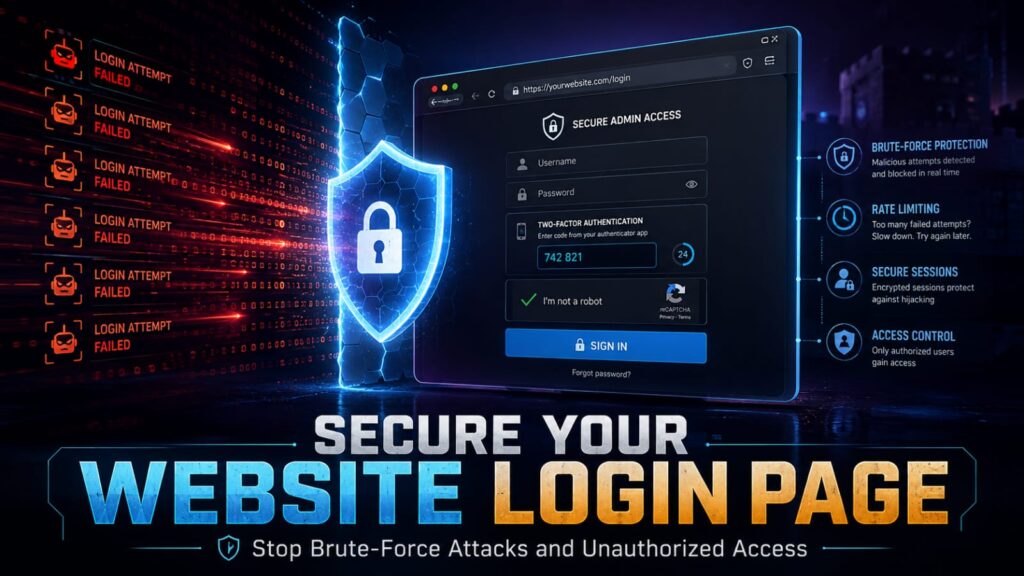

Your website login page is one of the most important entry points to protect. Whether you use WordPress, a custom CMS, an e-commerce platform, or a business dashboard, attackers may repeatedly attempt to guess usernames and passwords until they find a valid combination.
This type of activity is commonly associated with brute-force attacks, credential stuffing, automated bots, or stolen login databases. A weak or poorly protected login system can put your website, customer data, business tools, and administrative controls at risk.
The good news is that many login-related threats can be reduced by combining strong authentication, rate limiting, account monitoring, software updates, and careful access management.
This guide explains practical ways to strengthen your website login page and reduce unauthorized access attempts.
1. Use Strong Administrator Passwords
A strong password is one of the most important protections for any administrative account.
Avoid passwords based on:
- Your website name
- Your business name
- Your phone number
- Your birthday
- Simple words
- Common keyboard patterns
- Passwords reused on other websites
Use a long and unique password for every administrator account.
A reputable password manager can help generate and store secure passwords without requiring you to memorize each one.
2. Enable Two-Factor Authentication
Two-factor authentication adds another verification step after the password.
This can make unauthorized access much more difficult because an attacker may still need a second authentication method even if the password is exposed.
Depending on your website or authentication system, options may include:
- Authenticator applications
- Security keys
- Trusted-device approval
- Biometric verification
- One-time codes
Two-factor authentication is especially important for administrator, billing, hosting, and business-management accounts.
3. Limit Failed Login Attempts
Automated bots may try hundreds or thousands of passwords against a login page.
Rate limiting can slow or temporarily block repeated failed attempts.
A good login protection system may:
- Limit repeated failures
- Add a temporary delay
- Block suspicious IP addresses
- Require additional verification
- Record unusual login patterns
The goal is to make automated password guessing more difficult without creating unnecessary problems for legitimate users.
4. Protect Against Credential Stuffing
Credential stuffing happens when attackers use usernames and passwords exposed in previous data breaches and automatically test them on other websites.
This is why password reuse is dangerous.
Encourage users and administrators to use passwords that are unique to your website.
For higher-risk accounts, combine unique passwords with multi-factor authentication.
5. Avoid Using Shared Administrator Accounts
Several people should not normally share one administrator username and password.
Shared accounts make it difficult to:
- Track activity
- Remove one person’s access
- Identify suspicious changes
- Control permissions
Create individual accounts for each administrator and assign only the permissions they need.
6. Remove Old Administrator Accounts
Former employees, developers, freelancers, or contractors should not retain administrator access after their work is complete.
Review accounts regularly and remove users who no longer need access.
Old accounts are often forgotten, which makes them a potential security weakness.
7. Use Role-Based Access
Not every user needs full administrator permissions.
For example:
- Writers may only need content access
- Editors may need publishing permissions
- Support staff may need customer access
- Developers may need temporary technical access
Giving each user the minimum necessary permissions can reduce the impact of a compromised account.
8. Monitor Login Activity
Login activity can provide early warning of unusual behavior.
Useful information may include:
- Login time
- IP address
- Device type
- Browser
- Failed attempts
- Successful logins
Repeated failures from unfamiliar locations may indicate automated attacks.
9. Enable Login Alerts
Some platforms can notify administrators when an account signs in from a new device or unusual location.
Security alerts may help you respond more quickly if a password is compromised.
Enable useful alerts where available, especially for high-privilege accounts.
10. Use CAPTCHA Carefully
CAPTCHA or bot-detection tools can reduce automated abuse on login and registration pages.
However, overly aggressive challenges can frustrate legitimate users.
Use CAPTCHA strategically, such as after suspicious behavior or repeated failed attempts, instead of making every normal login unnecessarily difficult.
11. Keep Your Website Software Updated
A secure login form can still become vulnerable if the website software itself is outdated.
Regularly update:
- Your CMS
- Plugins
- Themes
- Authentication libraries
- Server software
- Security components
Security updates may fix vulnerabilities that could otherwise bypass normal login protection.
12. Use HTTPS on Login Pages
Login credentials should always be transmitted over HTTPS.
HTTPS encrypts communication between the browser and server, reducing the risk of credentials being exposed during transmission.
Make sure your website redirects HTTP traffic to HTTPS and does not load the login page over an insecure connection.
13. Protect Session Cookies
After a user logs in, the website may rely on a session cookie to keep the user authenticated.
Security settings should help protect these cookies from unnecessary exposure.
Depending on your platform, appropriate controls may include:
- Secure cookies
- HTTP-only settings
- Appropriate SameSite settings
- Session expiration
Session security is just as important as password security because stolen sessions can sometimes bypass the normal login form.
14. Set Reasonable Session Timeouts
Leaving administrative sessions active indefinitely increases risk.
Configure reasonable session expiration for sensitive areas.
This is especially useful for:
- Administrator dashboards
- Financial systems
- Hosting panels
- Customer data systems
A shorter timeout may be appropriate for highly sensitive environments.
15. Require Reauthentication for Sensitive Actions
Some actions are more sensitive than others.
For example:
- Changing a password
- Changing an email address
- Adding a new administrator
- Changing payment information
- Exporting sensitive data
Requiring the user to confirm their password or use another authentication step before these actions can provide additional protection.
16. Protect Password Reset Features
Password recovery is often targeted by attackers because it can bypass the normal login process.
Your reset system should:
- Use time-limited reset links
- Prevent easy account enumeration
- Invalidate used reset tokens
- Protect the email account involved
- Monitor unusual reset activity
Do not expose sensitive account information through password reset responses.
17. Avoid Revealing Whether a Username Exists
A login page that clearly says “Username does not exist” can help attackers discover valid accounts.
More neutral error messages can reduce unnecessary information disclosure.
For example, a system may simply state that the login details are incorrect without confirming whether the username or password was the problem.
18. Use Secure Password Storage
Website passwords should never be stored as readable plain text.
Modern applications should use strong password hashing methods designed specifically for password storage.
If you use a well-maintained CMS or authentication framework, follow its recommended password-handling methods instead of creating your own insecure system.
19. Protect Your Admin Login URL
Changing or restricting access to an administrative login URL can reduce some automated scanning, but it should not be treated as the main security measure.
Strong authentication, rate limiting, updates, and monitoring provide much more meaningful protection.
If you restrict the login URL, make sure legitimate administrators still have a reliable way to access it.
20. Restrict Admin Access by Network When Appropriate
Some high-security websites may limit administrative login access to trusted IP addresses, VPNs, or internal networks.
This can be useful for organizations where administrators work from predictable locations.
However, it may not be practical for teams that travel frequently or use changing mobile connections.
Use this control only when it fits your operational needs.
21. Use a Web Application Firewall
A web application firewall can help identify and block suspicious requests before they reach your website.
Depending on the service, it may provide protection against:
- Automated login attempts
- Malicious bots
- Known attack patterns
- Suspicious traffic
A firewall should complement good authentication practices rather than replace them.
22. Block Obvious Malicious Bots
Automated tools may repeatedly scan or attack login pages.
Bot-management systems can help reduce unnecessary traffic and abusive login attempts.
Use blocking rules carefully so legitimate search engines, users, and services are not accidentally affected.
23. Review Server Logs
Server and application logs can help identify suspicious login behavior.
You may discover:
- Thousands of failed login requests
- Repeated access from one IP address
- Unusual request patterns
- Login attempts against nonexistent usernames
- Unexpected access times
Logs can also help during a security investigation.
24. Keep Login Plugins and Authentication Tools Updated
If you use a plugin, module, or third-party authentication service, make sure it is still actively maintained.
An outdated security tool can itself become a vulnerability.
Remove authentication plugins you no longer use.
25. Back Up Your Website Regularly
Login security reduces the risk of unauthorized access, but it cannot guarantee that your website will never experience a problem.
Maintain reliable backups of:
- Website files
- Databases
- Configuration
- Important uploads
Keep at least one backup copy separate from the live server when practical.
How to Recognize a Brute-Force Attack
Possible warning signs include:
- A sudden increase in failed logins
- Repeated attempts against administrator usernames
- High traffic to the login page
- Many requests from the same IP range
- Unusual server load
These signs do not always prove an attack, but they deserve investigation.
What Should You Do If an Administrator Account Is Compromised?
If you believe an administrator account has been accessed without permission, act quickly.
Consider the following steps:
- Change the account password
- Sign out active sessions
- Review two-factor authentication
- Check administrator accounts
- Review website changes
- Inspect logs
- Check plugins and themes
- Review hosting access
If the account used the same password elsewhere, change those passwords as well.
Check for New Administrator Accounts
An attacker with administrator access may create another account to maintain access.
Review all high-privilege users after a security incident.
Remove unknown accounts only after you have documented and investigated the situation appropriately.
Check for Suspicious Website Changes
After unauthorized access, inspect the website for:
- Unknown plugins
- Modified themes
- New files
- Changed settings
- Unexpected redirects
- New API keys
Restoring account access without checking website changes may leave hidden security problems behind.
Common Login Security Mistakes
Many login-related incidents begin with simple mistakes.
Common examples include:
- Weak passwords
- Password reuse
- No two-factor authentication
- Unlimited login attempts
- Shared administrator accounts
- Old user accounts
- Outdated website software
- Ignoring login alerts
- Unprotected password reset systems
A Simple Website Login Security Checklist
Use this checklist to review your login security:
- Use strong unique administrator passwords
- Enable two-factor authentication
- Limit failed login attempts
- Review administrator accounts
- Remove old users
- Enable login alerts
- Use HTTPS
- Protect password reset features
- Monitor active sessions
- Keep software updated
- Review logs
- Maintain regular backups
Frequently Asked Questions
What is a brute-force attack?
A brute-force attack generally involves repeatedly trying many password combinations in an attempt to gain unauthorized access to an account.
Can changing the login URL stop brute-force attacks?
It may reduce some automated scanning, but it should not be considered a complete security solution. Strong passwords, two-factor authentication, rate limiting, and monitoring are more important.
How many failed login attempts should be allowed?
There is no single number that is correct for every website. The limit should balance user convenience with protection against automated abuse.
Does CAPTCHA stop all login attacks?
No. CAPTCHA can reduce some automated activity, but it should be used alongside other protections such as rate limiting, strong authentication, and monitoring.
Is two-factor authentication necessary for administrators?
For high-privilege accounts, two-factor authentication provides valuable additional protection and is strongly recommended when available.
What is the easiest way to improve login security?
Start with strong unique passwords, two-factor authentication, failed-login limits, current software, and regular review of administrator accounts.
Final Thoughts
Your website login page protects access to some of the most powerful functions on your site.
Strong passwords alone are not enough. Combining multi-factor authentication, login limits, monitoring, secure recovery, current software, and controlled administrator access provides much stronger protection.
Review your login security regularly. A few practical improvements can make automated attacks more difficult and help protect your website, users, and business systems from unauthorized access.